
Expiring Codes for Kit: setup guide
Expiring Codes gives each subscriber their own one-use discount code, made in your Stripe or Paddle account, that stops working at a deadline you choose. When they use it, we tag them in Kit. Setup takes about five minutes.
You need a paid Kit plan (Visual Automations and apps are on Kit's paid plans) and a Stripe or Paddle Billing account.
1. Install the app
Expiring Codes is in review at the Kit App Store right now. Once it's listed, you open Apps in Kit, search for Expiring Codes and click Install; Kit asks you to allow access, then you open your settings and click Sign in with Kit. The rest of this guide shows what you'll do from there.
Kit's permission screen says the app can "read and write" your Kit account, because Kit apps get one broad permission. We use it only to create our custom fields and tags and fill them in for the subscribers who reach your Expiring offer step. We only use subscriber ID numbers and never ask Kit for emails or names.
2. Connect your checkout
In your settings, paste a key that can only make discounts:
- Stripe: a restricted key (
rk_live_) with write access to Coupons and Promotion Codes. How to make one. We don't accept full secret keys (sk_live_). A test key (sk_test_orrk_test_) is fine for trying things out. - Paddle: an API key with Discounts read and write. How to make one.
- Start a Visual Automation with the event Joins a form (your signup form).
- Add the Expiring offer action: offer name welcome, 20% off, 72 hours (step 3 below).
- Add an Email sequence step, with the Expiring code block in its email (step 4).
- Add a Delay of 2 days.
- Add a Condition: Subscriber has tag "Used code: welcome". On the "no" side, add another Email sequence step with a short reminder that has the same block.
3. Add the Expiring offer step
Open a Visual Automation (Automation, then Visual automations). Click the + where the offer should start, choose Action, then Expiring Codes by Tofu Labs, then Expiring offer.
| Setting | What it does |
|---|---|
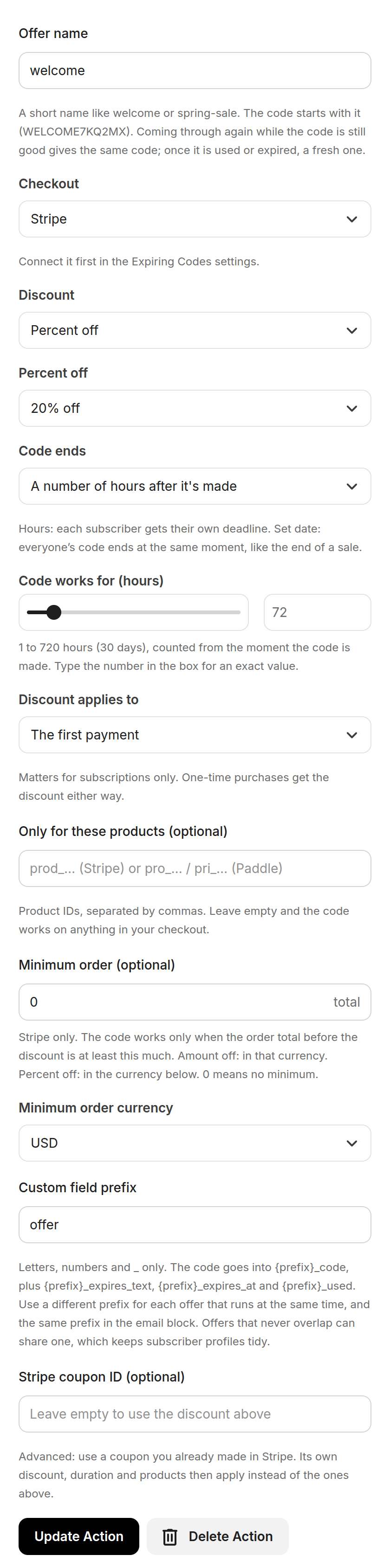
| Offer name | A short name such as welcome. The code starts with the first 8 letters of it, like WELCOME7KQ2MX. A subscriber who comes through the step again while their code is still good gets that same code back. Once they've used it or it has expired, they get a fresh one. |
| Checkout | Stripe or Paddle. Connect it in your settings first. |
| Discount | Percent off (pick 1% to 100% from the list), or an amount off in US dollars, euros, British pounds, Canadian dollars or Australian dollars. The amount must match your checkout's currency. |
| Code ends | A number of hours after it's made (1 to 720): each subscriber gets their own deadline. On a set date: pick the day and the time (in your Kit account's time zone; "End of that day" is 11:59 PM). Everyone's code ends at that moment, which suits a sale with a fixed end. Kit's calendar marks "today" by your computer's date, so if you're in another time zone from your Kit account, check the day you pick. |
| Discount applies to | For subscriptions: the first payment, the first few months (you set how many, 1 to 36), or every payment. One-time purchases get the discount either way. On Paddle, "months" means billing periods, which is the same for monthly plans. |
| Only for these products | Optional. Product IDs separated by commas: Stripe product IDs (prod_…), or Paddle product (pro_…) or price (pri_…) IDs. Leave it empty and the code works on anything. |
| Minimum order | Optional, Stripe only. The code works only when the order total before the discount is at least this much (an amount-off offer uses its own currency; for percent off you pick the currency). Leave it at 0 for no minimum. On subscriptions Stripe checks it on the first payment. |
| Custom field prefix | offer unless you change it. Letters, numbers and _ only. Use a different prefix for each offer that can run at the same time, and type the same prefix in the email block (step 4). Each prefix adds four custom fields to your Kit account (they show as empty on subscribers who never got that offer), so reuse one prefix for offers that never run at the same time, like this month's sale and next month's. |
| Stripe coupon ID | Optional, for advanced use: a coupon you already made in Stripe. Its own discount, duration and product limits then apply instead of the settings above. |
Kit runs app steps in batches, about every five minutes, so a subscriber can wait up to a few minutes at this step. They move on as soon as their code is saved.
If a setting can't work (for example more than 720 hours, or an end date that has passed), subscribers wait at the step, and the top of your settings page says how many are waiting, why, and what to change. If they're still waiting after half an hour, we also email your Kit account's address, at most once a day.
4. Show the code in your email
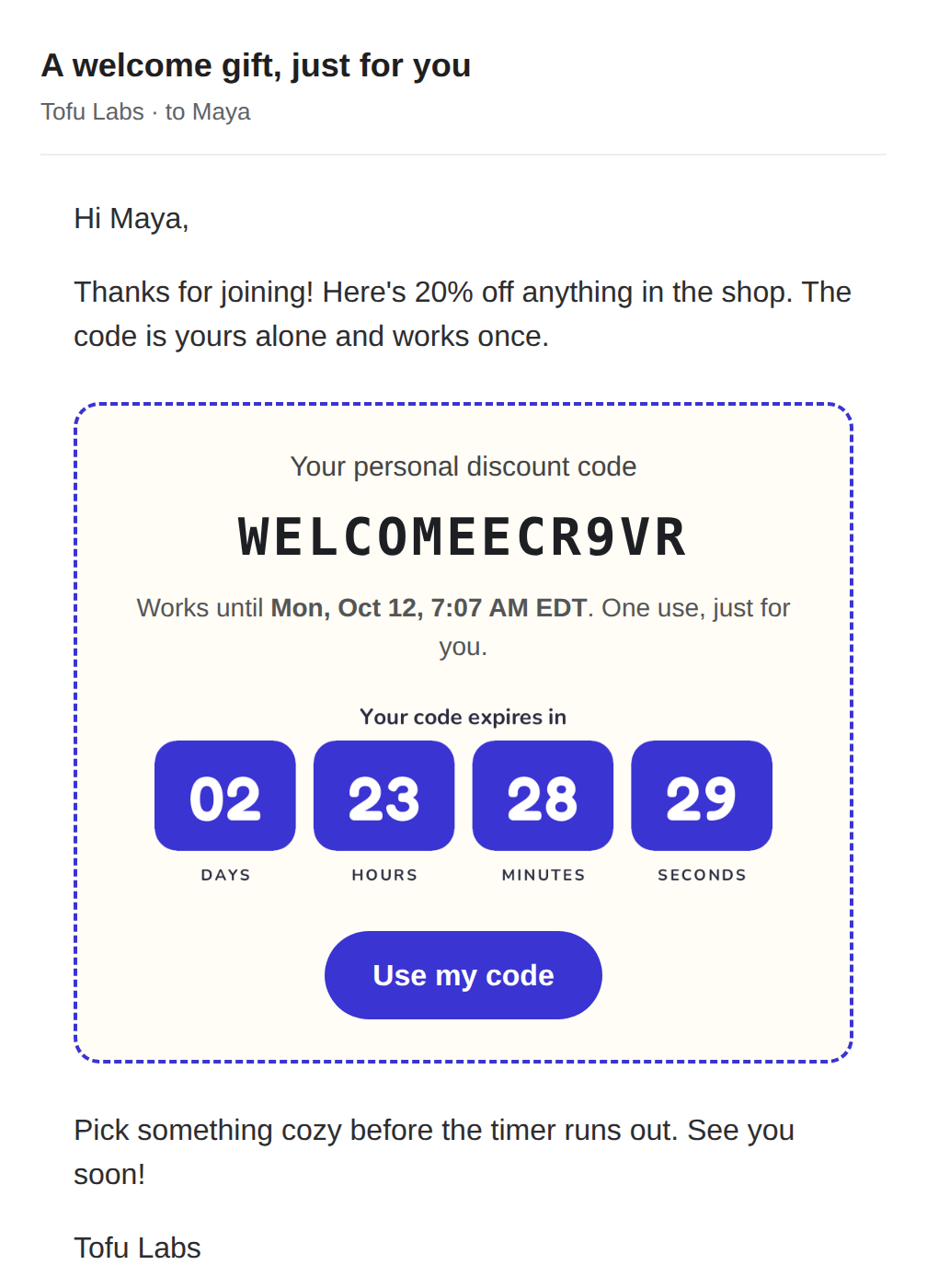
In the email that follows the step, type / and pick the Expiring code block. It shows the code and the deadline in a dashed coupon box, a countdown, and an optional button. In the editor you'll see placeholders and a sample countdown, plus a small {% if %} line above the box and {% endif %} below it. Leave those two lines in: they hide the box for anyone who has no code.
Use the same Custom field prefix in the block as in the step. If they differ, the block looks for a code that isn't there and stays hidden. If no code has been made with the block's prefix yet, the editor shows a yellow note above the box saying so (subscribers never see it). The sample countdown runs as long as your latest code with that prefix.
The countdown
"Show a countdown" is on by default. The timer shows that subscriber's own time left, so it reads right in any time zone (the "Works until" line uses your Kit account's time zone). Each time the email is opened, it counts down for a minute, then holds still. Some email apps hide images until the reader allows them; the code and the "Works until" line are plain text and always show.
The button fills in the code
Put your checkout link in Button link:
- A Stripe Payment Link (
buy.stripe.com/…) gets the code filled in for the buyer automatically. Turn on "Allow promotion codes" on the link in Stripe. - A Paddle hosted checkout link (
pay.paddle.io/…) also gets it filled in. - Any other link: write
{code}where the code should go, likehttps://example.com/checkout?coupon={code}. Stripe Payment Links on your own domain work this way: add?prefilled_promo_code={code}.
You can also place the fields anywhere Kit takes personalization, including subject lines:
| Tag | Example |
|---|---|
{{ subscriber.offer_code }} | WELCOME833XRV |
{{ subscriber.offer_expires_text }} | Sat, Oct 10, 11:05 AM EDT (your Kit time zone) |
{{ subscriber.offer_expires_at }} | 2026-10-10T15:05:10.000Z |
{{ subscriber.offer_used }} | no, then yes once the code is used |
5. See who used their code
Every 15 minutes we ask Stripe or Paddle which of your codes have been used. So within about 15 minutes of a sale:
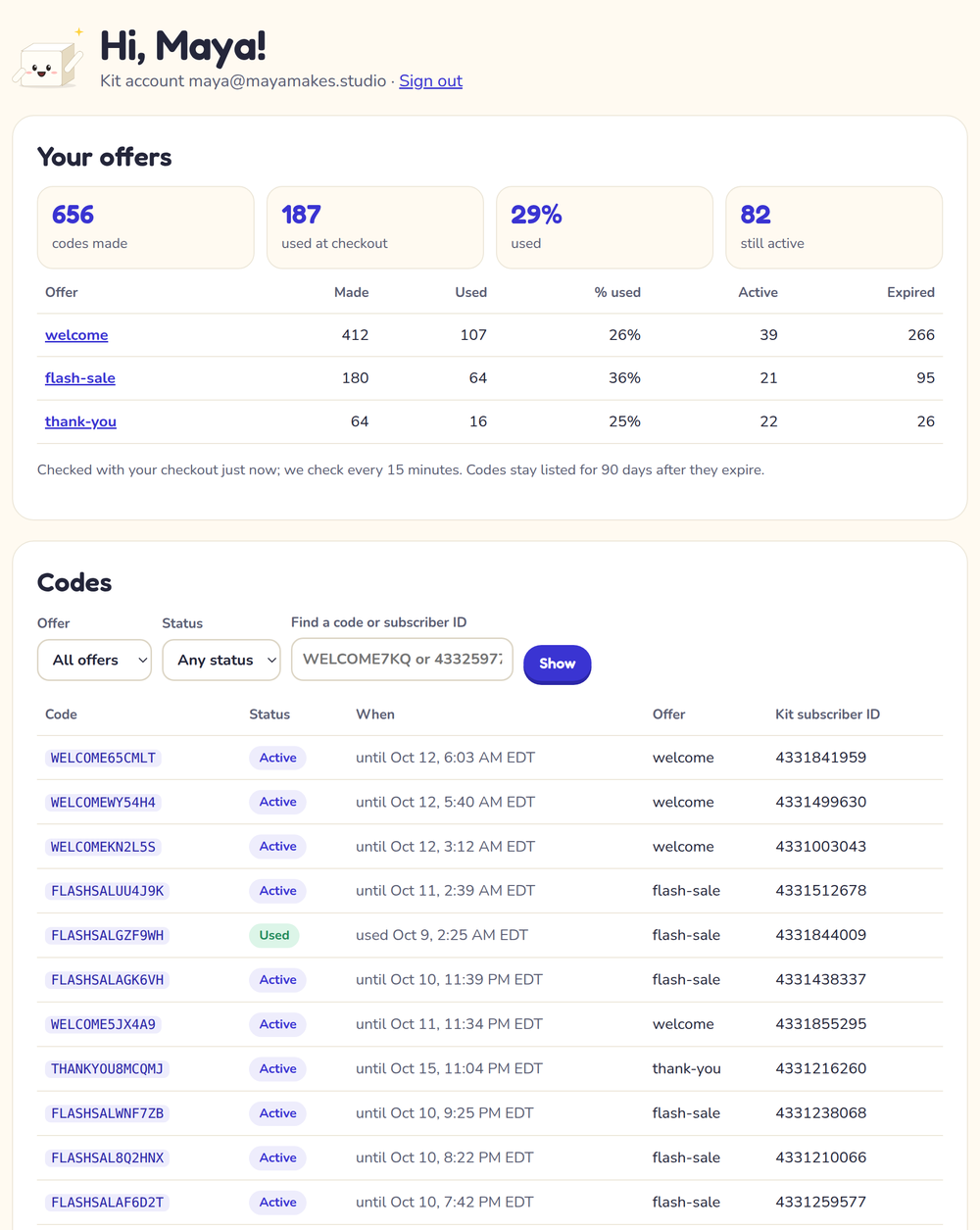
- your settings page shows the code as Used (with the time our check found it, up to 15 minutes after the sale), with what each offer gives and its codes made, used, % used, still active and expired for each offer;
- in Kit, the subscriber gets the tag Used code: offer name (like "Used code: welcome") and their
offer_usedfield changes toyes.
The tag is created as soon as the first code for an offer is made, so you can pick it in a condition right away. The tags our templates use ("Used code: welcome", "Used code: flash-sale" and "Used code: thank-you") are made when you install the app. To skip a reminder for people who already bought, put a Condition before the reminder email: Subscriber has tag "Used code: welcome", and send the reminder only on the "no" side.
A code you switch off yourself in Stripe or Paddle (and nobody used) shows as Turned off.
The Codes list in settings lets you filter by offer and status, find a code or a Kit subscriber ID, and Download CSV (code, offer, Kit subscriber ID, a link to the subscriber in Kit, created, expires, found used, status; times in UTC; "found used" is when our check saw the code used, and your checkout has the exact time of each sale). You can also filter by the days the codes were made. We never fetch subscribers' emails, so the CSV has none: the link opens each subscriber in Kit.
6. Test it
- Add yourself as a subscriber and send yourself through the automation (for example with a test tag as the entry).
- Within about five minutes, check your subscriber profile in Kit: the
offer_fields are filled in. - Open the email, click the button and pay with the code. Try it a second time: it's refused, because each code works once.
- Within 15 minutes, your settings page shows the code as used and Kit shows the tag.
Want to try without real money? Connect a Stripe test key or a Paddle sandbox key first, then switch to your live key.
Plans and limits
The free plan makes 25 codes a month. Starter makes 1,000 and Pro 10,000. See pricing. Getting an existing, still-good code back (same subscriber, same offer) doesn't count.
On a paid plan a busy month has room: you get up to 20% more codes at no charge, and your settings show a banner from 80% on. Past that, or past 25 on the free plan, new subscribers wait at the Expiring offer step. Kit tries again about every five minutes, so as soon as you upgrade (or the month turns), waiting subscribers get their code and move on. Nobody gets the email without a code.
Common questions
Can someone share their code?
Each code works once. The first person to use it uses it up.
What happens at the deadline?
Stripe or Paddle stops accepting the code, and the countdown shows "This code has expired". The code stays in Kit so you can see what was sent.
What if someone reaches the same offer again?
While their code is still good, they get the same code and deadline back. If they already used it or it has expired, they get a fresh code with a fresh deadline (it counts as a new code), and the "Used code" tag comes off. If you changed the offer's discount since then, a still-good code keeps the discount it was made with; the new settings apply to new codes. To give everyone the new discount, use a new offer name.
Can I limit a code to first-time customers?
Not reliably, so we don't offer it. Stripe's own "first-time customers" setting doesn't hold on Payment Links and most Checkout pages: they treat each buyer as new, so a repeat customer can still use the code. A minimum order or only for these products does hold everywhere, and the "Used code" tag lets your automation send offers only to people who haven't bought.
Can I run two offers at once?
Yes. Give them different offer names and different custom field prefixes, like welcome and winback.
How do I uninstall?
In Kit, open Apps, then Expiring Codes, then Uninstall. We stop at once and delete your Stripe or Paddle key straight away; the rest of your data (code records and counts) is deleted within 30 days. If you install again, connect your checkout again in settings. Codes already sent keep working until their deadline, unless you delete them in Stripe or Paddle.
Still stuck? Contact support. We read every email and aim to reply within two business days.