How to use Checkout Sync with Kit
Checkout Sync sends what happens in your checkout to Kit: sales, refunds, cancellations and failed payments. Setup takes about five minutes. To start emails you need Kit's Creator or Creator Pro plan, because Kit runs Visual Automations on its paid plans only. On Kit's Free plan the app still records purchases, tags and custom fields.
1. Install the app
Install Checkout Sync by Tofu Labs from Kit and press Grant access. Kit then sends you to your Checkout Sync settings, where a short checklist walks you through the rest: connect your checkout, add a Checkout Sync event to an automation, send a test sale, and (optional) import past customers. If Kit leaves you on its own page instead, press App settings on Checkout Sync.
To come back to your settings later, open Apps → Manage in Kit and press App settings on Checkout Sync, or go to tofulabs.app/sync/settings and sign in with Kit.
2. Connect your checkout
Under Your checkouts, press Connect a checkout and pick yours. Each one has its own short guide:
| Checkout | What you do | What comes through |
|---|---|---|
| Lemon Squeezy | Paste a URL and a secret into a new webhook | Sales, renewals, refunds, cancellations, failed payments |
| Paddle Billing | Paste an API key; we add the webhook | Sales, renewals, refunds, cancellations, failed payments |
| Polar | Paste a URL and a secret into a new webhook | Sales, renewals, refunds, cancellations, failed payments |
| Stripe | Paste a restricted key; we add the webhook | Refunds, cancellations, failed payments, and sales too if you switch them on (why it starts off) |
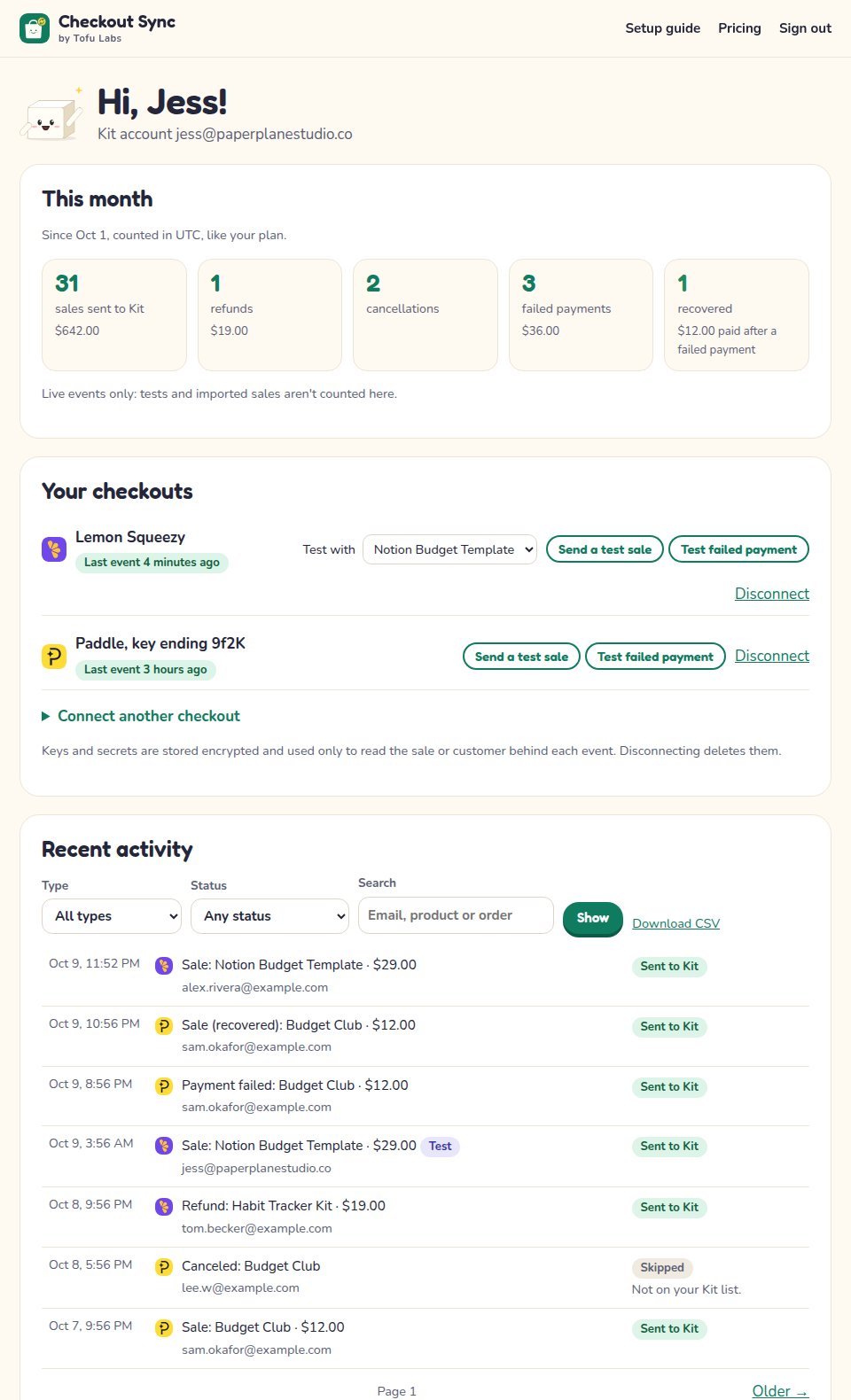
You can connect more than one. When the first event arrives, the checkout's label turns green and the event shows under Recent activity.
3. Send a test sale
Next to each connected checkout, press Send a test sale or Test failed payment. It's a test sale (or failed payment) for your own Kit address, with an order number starting test-. Once that checkout has had two or more products sell, a Test with list appears beside the buttons with that checkout's products (your newest is picked to start with): an automation limited to one product only starts for a test of that product. The test uses the price that product last sold for. Before the first sale it uses "Sample product", and when we don't know a price it uses a sample price of $19.00; the message says so. After you press it, the page says Test sent to Kit for your address, and Why didn't it start? under it lists the usual reasons an automation stays quiet. What it does in Kit:
- Your own profile gets one tag, Checkout Sync test. No purchase is saved, no other tags are added and no custom fields change, so your Kit revenue and segments stay clean. If your address isn't a subscriber yet, we add it.
- It reaches your Checkout Sync automations on every Checkout Sync plan, Payment failed included, so you can watch your own email arrive (Kit checks about every five minutes). Only automations that are turned on start.
- It shows under Recent activity marked Test, doesn't count toward your plan and isn't in your monthly numbers.
The test failed payment's update-card link opens this section (or your Polar portal, if you've added it). A real one opens the buyer's own update page. You can remove the Checkout Sync test tag in Kit whenever you like.
Orders from a Polar sandbox or Lemon Squeezy test mode work the same way: they only add the Checkout Sync test tag to people already on your list (or, unless you chose "Only update people already on my list", add the buyer first, for a test sale).
Already ran a test? Kit won't start the same automation for you again while you're still inside it. Wait until you've finished it, or remove yourself from that automation in Kit, then test again.
4. What lands in Kit
- A purchase on the buyer's Kit profile for every sale and renewal, with each product, the price and a transaction ID that starts with
ls-,polar-, Paddle'stxn_or Stripe'spi_. A full refund marks that purchase as refunded. - Tags, which you can switch off in your settings: Customer on every buyer, Bought: product name for each product. Lemon Squeezy adds the variant (Bought: Budget Club - Monthly, left out when it's called Default), and Paddle adds the price's name when the price has one (Bought: Evergreen Deadline - Creator monthly). Polar and Stripe give the product name only (Bought: Cozy Cross-Stitch Pack), and Refunded, Canceled and Payment failed. You can rename all of them except the Bought: ones. The Payment failed tag comes off again when their next payment goes through.
- Four automation events (below).
- Three custom fields, on unless you switch them off (below).
5. Buyers who aren't on your list yet
Under What happens in Kit, pick one. A new install (and Start fresh) begins on the middle one.
- Add every buyer. New buyers are added to Kit with their first name. Fits when your checkout or product page tells buyers they'll get emails from you.
- Add buyers, but tag the ones who didn't opt in. Everyone is added so their purchase is on record, and buyers who didn't agree to marketing get a tag (Not opted in, you can rename it). Paddle and Stripe checkouts can ask for marketing consent; when they do, we follow the buyer's answer. Lemon Squeezy and Polar don't send one, so every new buyer from them gets the tag. Keep the tag out of your newsletter segments and send those buyers only emails about what they bought.
- Only update people already on my list. A sale from someone who isn't a subscriber shows as Waiting, "Not on your Kit list yet", for 10 minutes (in case they're signing up right then), and is then Skipped: "Not on your Kit list".
Which fits depends on what you told buyers at checkout and on the rules where you and they live; when unsure, the middle choice keeps your options open. Refunds, cancellations and failed payments only ever update people already on your list.
6. Custom fields
With Keep three custom fields up to date on, Checkout Sync adds these fields to your Kit account and fills them in for each buyer:
| Field | What it holds |
|---|---|
checkout_status | active, past_due (a payment failed), canceled, refunded or one-time (single purchases only) |
checkout_last_product | The product they bought most recently |
checkout_customer_since | The date of their first purchase we know of, like 2026-03-14 |
Use them in any email, like Hi {{ subscriber.first_name }}, thanks for being a member since {{ subscriber.checkout_customer_since }}, or build a segment in Kit with a filter such as "checkout_status is active" to email only current members.
How checkout_status changes: once someone has a subscription, only subscription events change it (a renewal, a failed payment, a cancellation, or a refund of the subscription). A one-off purchase, or the refund of one, never knocks an active member out of active. one-time is for people who have only ever made single purchases. When someone cancels, the Canceled tag and ends_on come right away, but checkout_status stays active until their paid time actually runs out, then turns canceled. If access ends right away, it turns canceled at once and ends_on is empty.
7. Start an automation from an event
Add a Checkout Sync event to any Visual Automation:
- In Kit, open Automations → Visual automations and create one (or open an existing one).
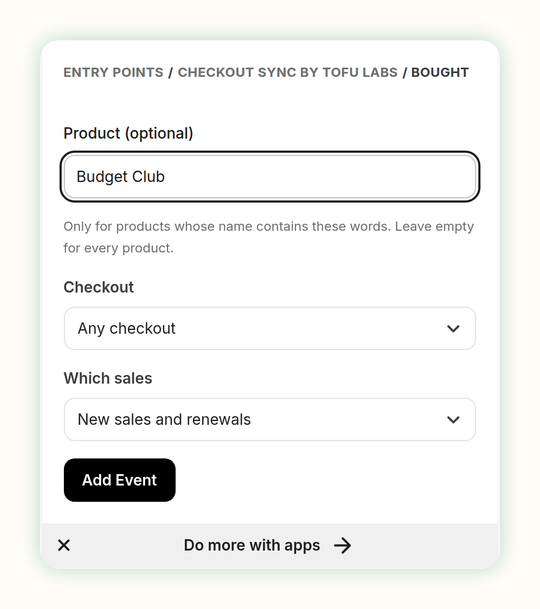
- Add an event, or pick the entry point, and choose Checkout Sync by Tofu Labs.
- Pick Bought, Refunded, Canceled or Payment failed.
- Optional: type part of a product name to only react to that product, and pick one checkout. For Bought you can also choose new sales only or renewals only.
- Add your emails after it and turn the automation on.
Ready-made automations (Rescue failed payments, Win back canceled, Welcome new customers) will show up in Kit's template gallery once Kit has reviewed them. Until then, the steps above take about two minutes, and step 9 has an email for each event ready to copy.
On the Free plan, Canceled and Payment failed are still recorded and tagged, and your dashboard shows the money at risk; they start automations from the Starter plan. Plans
8. Put the details in your emails
In an email inside that automation, type {{ automation.checkout_sync.EVENT.TAG }}, with the event's name (bought, refunded, canceled or failed) and one of these tags. For example {{ automation.checkout_sync.bought.product }}.
| Tag | Events | What it holds |
|---|---|---|
product | All four | What they bought, named like their Bought tag |
amount | Bought, Refunded, Payment failed | Like "$19.00" |
order_number | Bought | The checkout's order or invoice number; empty on Lemon Squeezy renewals |
receipt_url | Bought | The Lemon Squeezy receipt or the Stripe invoice page. Empty for Paddle (Paddle emails its own receipt), Polar and tests, so always wrap it (below) |
renewal | Bought | yes or no |
full_refund | Refunded | yes or no |
reason | Refunded, Canceled | The reason given, when the checkout sends one: Paddle on refunds; Polar and Stripe (if you ask for cancellation feedback) on cancellations. Otherwise empty |
ends_on | Canceled | When their access ends, like "November 9, 2026". Empty when access ended right away, so wrap it (as in the Canceled email below) |
manage_url | Canceled | Where they can resume: your Lemon Squeezy customer portal, or your Polar portal link if you've added it. Empty for Paddle and Stripe |
update_payment_url | Payment failed | Where they fix their card: Paddle's update page, Stripe's hosted invoice, your Lemon Squeezy portal, or your Polar portal link if you've added it (where to find it) |
store | All four | The checkout's name, like "Lemon Squeezy" |
first_name | All four | The first name the buyer typed at checkout |
Wrap a tag that can be empty, so its line disappears when there's nothing to show:
{% if automation.checkout_sync.bought.receipt_url != "" %}Your receipt: {{ automation.checkout_sync.bought.receipt_url }}{% endif %}
9. Emails ready to copy
Our ready-made automations are still in Kit's review, so they aren't in Kit's template gallery yet. Until they are, each event below takes four steps:
- In Kit, make a Visual Automation and pick the Checkout Sync event as its entry point (step 7).
- Add an Email step after it and create a new email.
- Copy the subject and the email below into it, and swap your name in at the end.
- Turn the automation on.
Bought: a thank-you
Subject: Thank you for buying {{ automation.checkout_sync.bought.product }}!

Hi {{ subscriber.first_name | default: "there" }},

Thank you for buying {{ automation.checkout_sync.bought.product }}. It means a lot.
{% if automation.checkout_sync.bought.receipt_url != "" %}
Your receipt: {{ automation.checkout_sync.bought.receipt_url }}
{% endif %}
If anything is unclear or doesn't work, just reply to this email and I'll help.

Your name
Payment failed: update your card
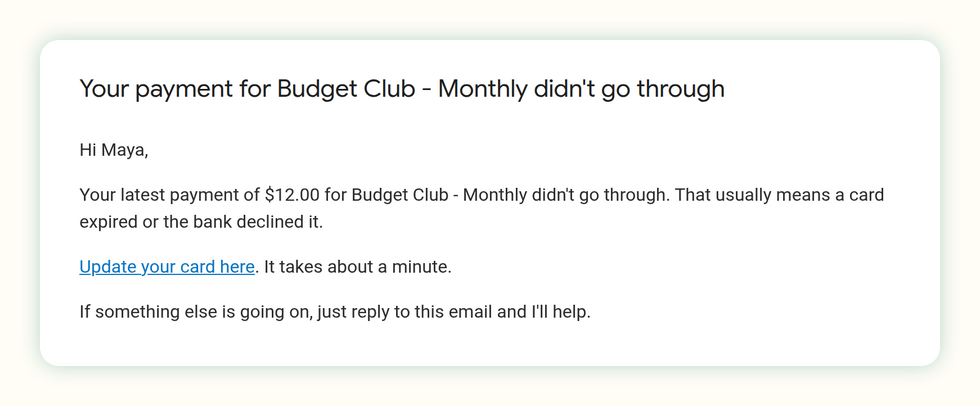
Subject: Your payment for {{ automation.checkout_sync.failed.product }} didn't go through

Hi {{ subscriber.first_name | default: "there" }},

Your latest payment of {{ automation.checkout_sync.failed.amount }} for {{ automation.checkout_sync.failed.product }} didn't go through. That usually means a card expired or the bank declined it.
{% if automation.checkout_sync.failed.update_payment_url != "" %}
Update your card here: {{ automation.checkout_sync.failed.update_payment_url }}
It takes about a minute.
{% endif %}
If something else is going on, just reply and I'll help.

Your name
On Kit, add a Condition step before a second reminder: "has tag Payment failed". The tag comes off when their next payment goes through, so people who already fixed their card don't get it.
Canceled: sorry to see you go
Subject: Sorry to see you go

Hi {{ subscriber.first_name | default: "there" }},

Your {{ automation.checkout_sync.canceled.product }} subscription is canceled. Thank you for being part of it.
{% if automation.checkout_sync.canceled.ends_on != "" %}
You keep access until {{ automation.checkout_sync.canceled.ends_on }}.
{% endif %}
Can I ask why you left? Just reply with a sentence. I read every answer.

Your name
Refunded: a kind goodbye
Subject: Your refund for {{ automation.checkout_sync.refunded.product }}

Hi {{ subscriber.first_name | default: "there" }},

Your refund of {{ automation.checkout_sync.refunded.amount }} for {{ automation.checkout_sync.refunded.product }} is on its way. Banks usually take a few days to show it.

Sorry it wasn't the right fit. If you have a minute, reply and tell me what was missing.

Your name
10. Import past customers
Under Import past customers, pick how far back (30 days, 90 days, a year or everything) and press Import. Each past sale becomes a Kit purchase with its original date, the same tags and custom fields, following your choice for buyers who aren't on your list.
- Imports never start automations and don't count toward your plan.
- Paddle uses the key you connected with. Stripe needs Stripe sales switched on. Lemon Squeezy and Polar ask for an API key just for the import, and we delete it when the import ends.
- A progress bar shows how far along it is. It carries on by itself every few minutes, even with the page closed, and a little faster while it's open. When it's done you see how many sales it found, how many it imported and how many it skipped (people not on your list, if you chose to only update them). You can cancel at any time and what's already in Kit stays.
- Running it twice, or a sale that is imported and also arrives live, never makes a second purchase.
- Imported sales are kept out of Recent activity: pick Type → Imported to see them.
11. If something doesn't arrive
Every event shows under Recent activity in your settings with what happened to it:
- Sent to Kit: all done.
- Skipped: nothing to do, with the reason: a refund for someone who isn't on your list, a made-up customer from Paddle's simulator, a checkout you've since disconnected. Trying again wouldn't change it, so there's no button; once someone is on your list, their next event goes through.
- Waiting: on its way, nothing for you to do. The note says why: Kit was busy; "Not on your Kit list yet" (we look again for 10 minutes, then it's Skipped); or "Couldn't reach Paddle yet, trying again", when your checkout is slow to answer our lookup of the buyer. We keep asking by ourselves for 3 days, and if it takes longer than half an hour, Needs your attention says so.
- Not sent: with the reason under it. Over this month's sales on your plan: the row says Upgrade, then it sends by itself, and it goes to Kit a few minutes after you upgrade, or when the count resets on the 1st. Kit didn't accept it (often a paused Kit plan): your checkout sends it again for a while, we retry it for up to three days, and you can press Try again any time. Your checkout refused our lookups for 3 days straight: Try again asks once more.
A cancellation can show as two rows on different days: Canceled when the buyer cancels (the tag and ends_on go to Kit, and on Starter and Pro the Canceled automation starts) and Subscription ended on the day their paid time runs out (only checkout_status changes, to canceled). When access ends right away, it's one row: Canceled, access ended (the Canceled event goes to Kit with an empty ends_on, and checkout_status turns canceled).
Filter the list by type and status, search by email, product or order number, and press Download CSV for a spreadsheet. If a checkout stops accepting our key, has sent nothing for a week, or events are stuck, a Needs your attention box at the top says what to do.
Nothing showing up at all? Check the webhook in your checkout points at the URL from your settings and has the right events ticked. Still stuck? Write to us.
12. Uninstalling
Uninstall Checkout Sync in Kit under Apps → Manage. We stop at once: for Paddle and Stripe we remove the webhook we added and delete your key; for Lemon Squeezy and Polar, delete the webhook in their dashboard (until you do, we answer it without doing anything). A running import stops. Purchases and tags already in Kit stay, and the rest of your Checkout Sync data is deleted 30 days later.